


These are the docs for the Metabase master branch. Some features documented here may not yet be available in the current release. Check out the docs for the current stable version, Metabase v0.58.
Numbers
The Numbers option is for displaying a single number, nice and big.

If you want to display the change in the number from period to period, you can use the Trend chart instead.
Create a number chart
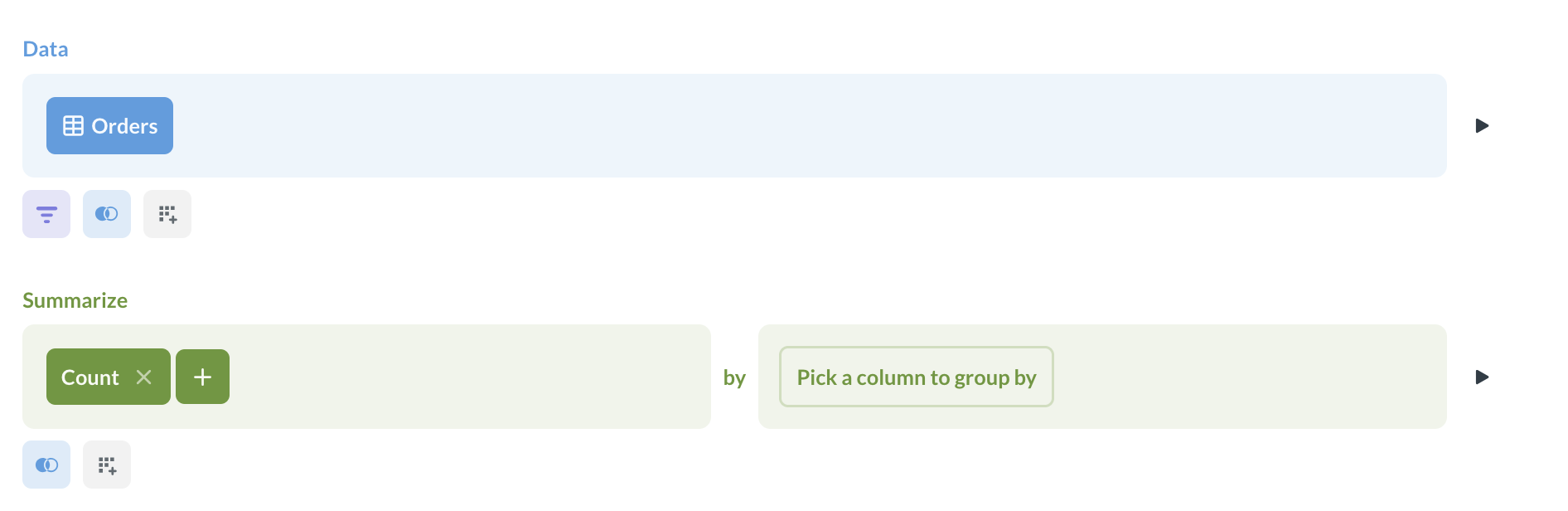
To create a number chart, you need a query that returns a single record with at least one number in it, like “Count of orders”.
-
Build a query that returns at least one number. You can build it either in the query builder or in the native query editor.
-
Run the query:
- If you’re in the query builder, click Visualize;
- If you’re in the native editor, click Run query.
-
If the “Number” visualization has not already been applied by default, change the visualization type by clicking Visualization in the bottom left and selecting “Number” from the sidebar.

-
If your query returns multiple values, you might need to manually select which value to display as the big number. Open visualization setting by clicking on the gear button in the bottom left, and select the Field to show in the Formatting settings.
Number chart settings
To open the chart settings, click on the Gear icon at the bottom left of the screen.
Formatting options
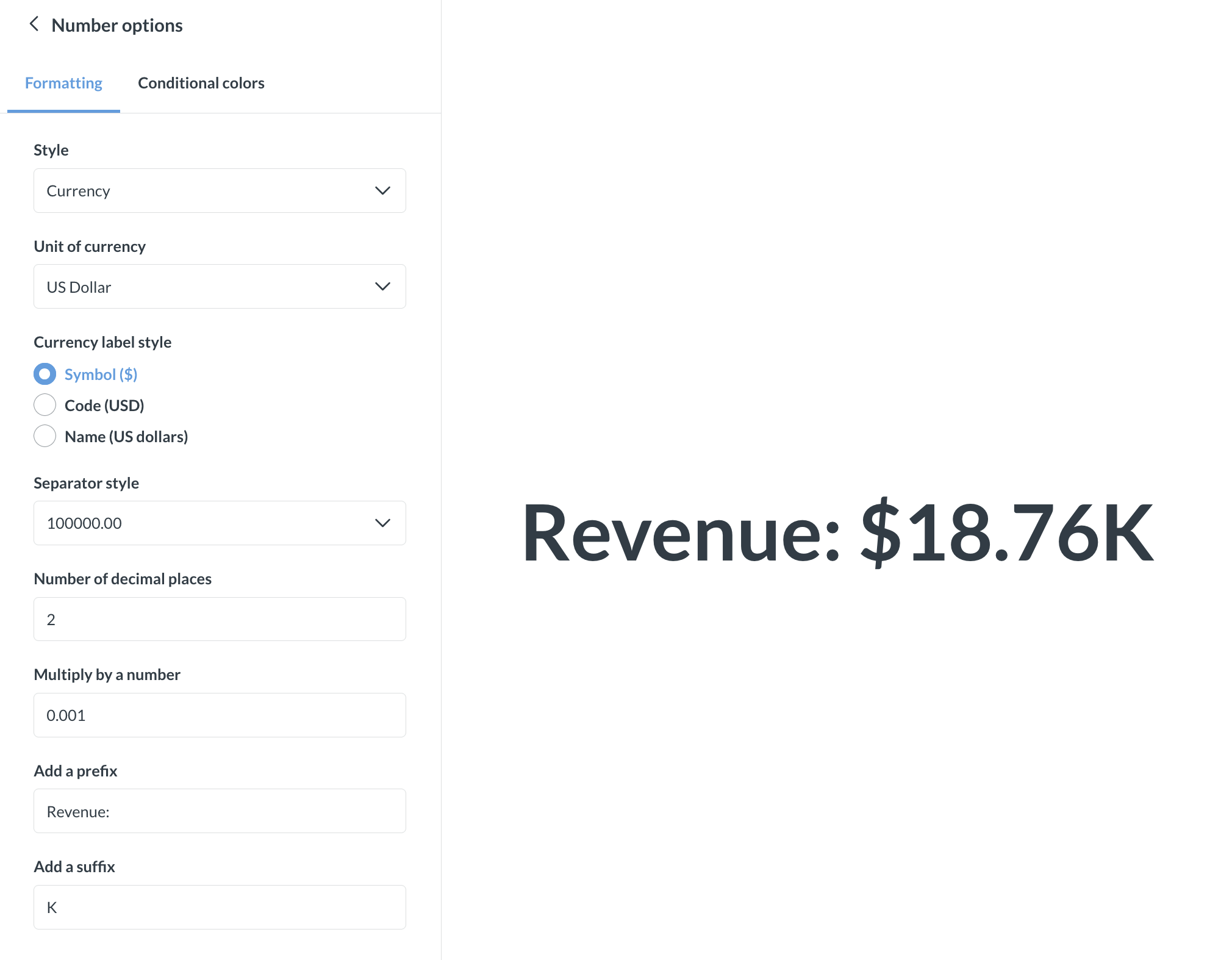
You can use formatting options to do things like:
- Adding character prefixes or suffixes to it (so you can do things like put a currency symbol in front or a percent at the end),
- Setting the number of decimal places you want to include
- Multiplying your result by a number (like if you want to multiply a decimal by 100 to make it look like a percent). If you want to divide by a number, then just multiply it by a decimal (e.g, if your result is
100, but you want it to display as1, simply multiply it by 0.01). -
…and others:
Conditional colors
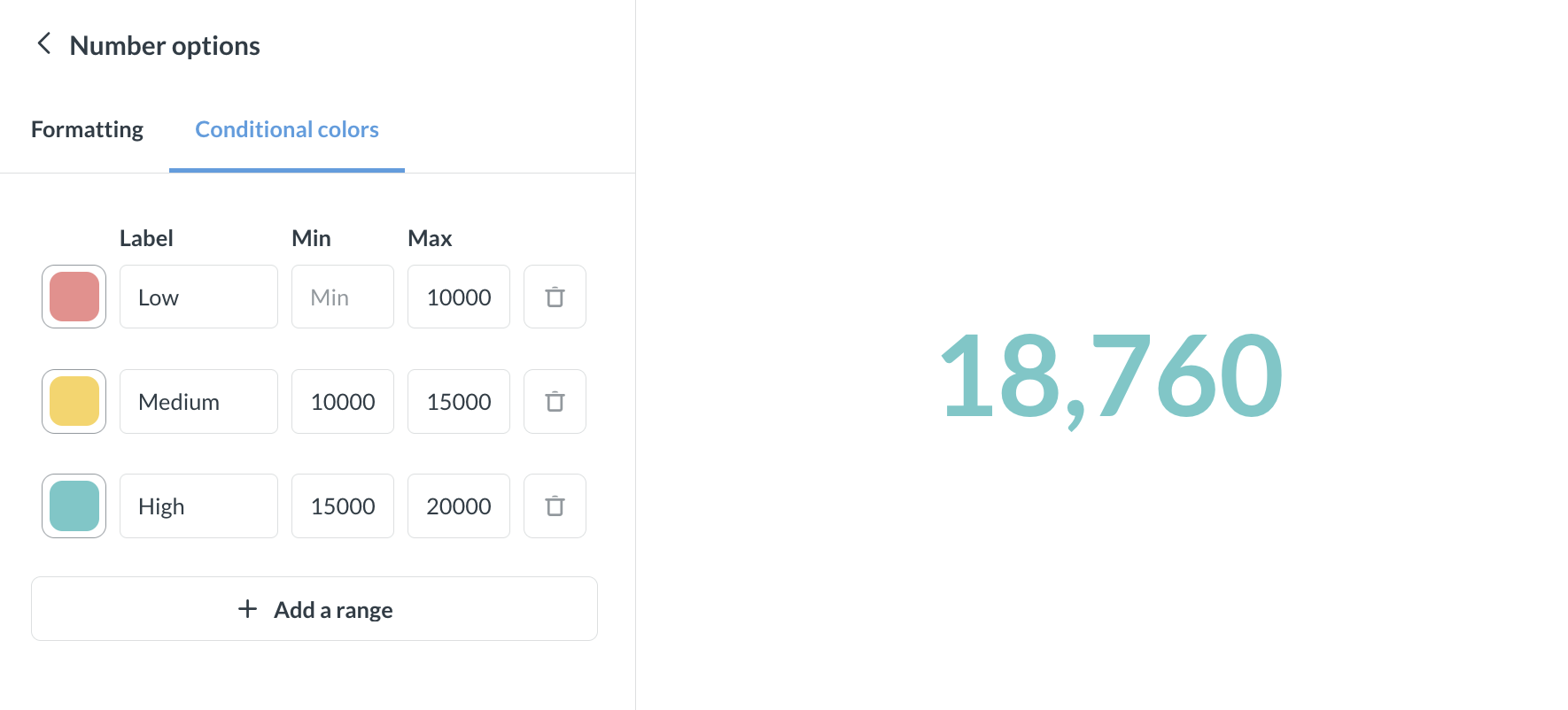
To change the color of the displayed number based on the value, go to the Conditional colors tab option in chart settings. Add the intervals and the corresponding colors (for example, make the number red if the value is less than 50, and green if it’s more than 50). You can leave the lower and/or upper bounds empty.
Read docs for other versions of Metabase.